6.1) Tribal Address Validation & CA Medicaid Approval Process
This article explains the new Tribal Address Validation enrollment process for Quest App. This feature allows Street Team agents to create an enrollment using a Tribal qualification flow when an applicant’s address cannot initially be validated through the standard process.
ST Agents must carefully follow the instructions outlined below to ensure enrollments are completed correctly and applicants are informed about the qualification requirements.
Forced Tribal Offer Flow
The “Forced Tribal Offer” flow is a new option available during the Quest enrollment process that allows agents to submit an enrollment under a specific Tribal qualification flow (even when the address is not initially recognized as valid or tribal).
A new checkbox will be added to the Address page of the enrollment flow. This checkbox allows agents to enable the Forced Tribal Offer flow for the enrollment.
Note: The Forced Tribal Offer feature will only be available in NLAD States with Tribal areas.
Agents must tap on the option to enable the forced validation

Once selected, the following warning message will appear below the checkbox in red:

From here, 3 different scenarios can happen, based on the address validation result.
Tribal Address Validation Results
Scenario 1
Address Invalid or Non-deliverable (not validated by CASS/AES/USPS)
Current behavior
When the address is entered is invalid, NLAD cannot confirm whether the address is located in a tribal area. As a result, the agent cannot select a device because the free phone offer is not available for non-tribal areas. In this case, the agent receives a “No offers available” message. No enrollment can be created.
New behavior (selecting the “Force Tribal Offer” checkmark)
With the new tribal address validation flow, the Quest App will display the free phone option and the tribal plan, allowing the agent to continue with the enrollment.
Once the enrollment is completed, the app redirects the customer to NatVer. During the NatVer application creation, since the address is INVALID, the customer will need to pinpoint on a map the location of their home, and that could trigger that NatVer/NLAD finally recognizes the address as TRIBAL, even when this was not possible due to the address validation failing.
Possible NatVer Address Validation outcomes
- Address tribality confirmed: the enrollment is QUALIFIED.
- Address tribality not confirmed: the enrollment is UNQUALIFIED. Reason: NOT TRIBAL.
Scenario 2
Address is 100% valid but confirmed non-tribal.
Current behavior
Since the address is valid and confirmed as non-tribal by NLAD, the agent is stopped at the Device Selection page because the free phone offer is not available for non-tribal areas.
In this case, the exit page displays a message that reads NO OFFERS AVAILABLE.
No enrollment can be created.
New behavior (selecting the “Force Tribal Offer” checkmark)
Under the Forced Tribal process, if the address is validated successfully but identified as non-tribal, the system will display the following error message:

Scenario 3
Address is VALID/DELIVERABLE and confirmed as tribal during the first NLAD verification
Current behavior
The customer can complete the enrollment with the free phone option and the tribal plan selected.
After the enrollment is submitted, the customer is redirected to NatVer, completes the verification process successfully, and the enrollment is qualified without issues.
New behavior (selecting the “Force Tribal Offer” checkmark)
The process remains the same as the current flow. No changes on behavior expected.

Accurate Map Pin Placement in NatVer
When completing the address location step in NatVer, agents should avoid manually placing the pin by approximation on the map whenever possible. To ensure the most accurate location selection, agents should follow the process below:
Recommended Process
- Open the address in Google Maps
- Search for the exact customer address
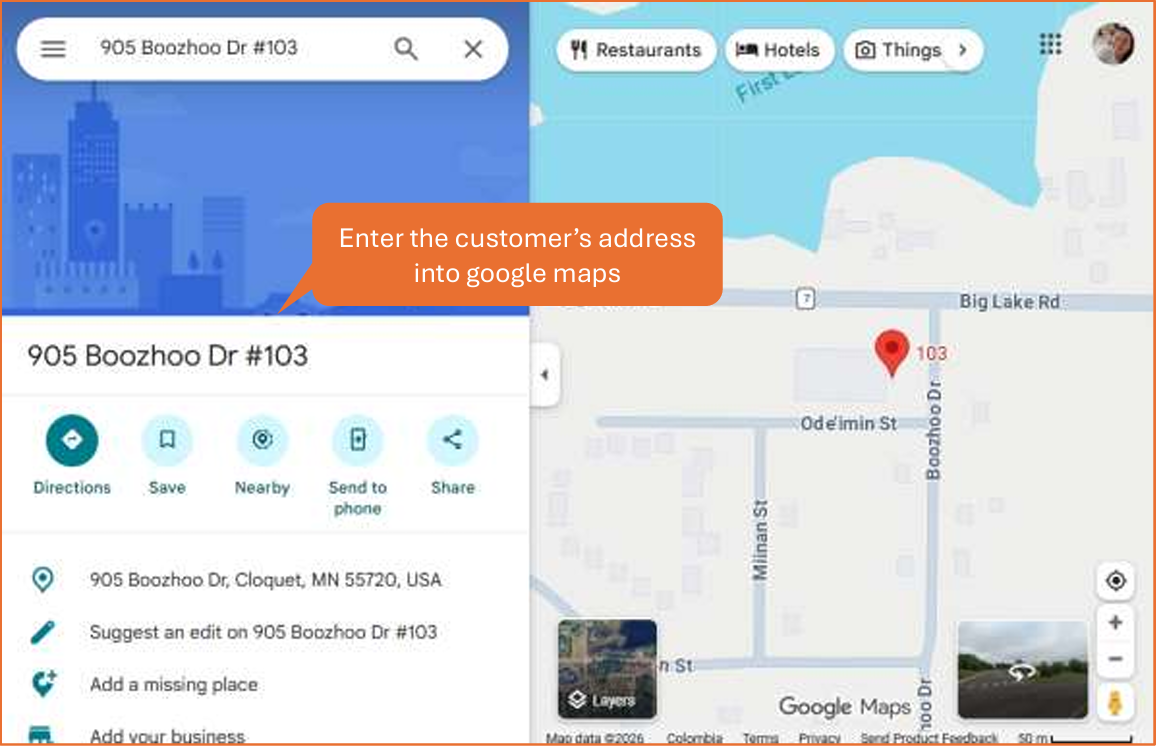
- Copy the latitude and longitude coordinates shown in the Google Maps URL/address bar.
Note: Latitude and Longitude can be found after the "@" symbol in the URL address bar.

- Go back to the NatVer map section
- Paste the coordinates directly into the location field instead of manually dragging the pin
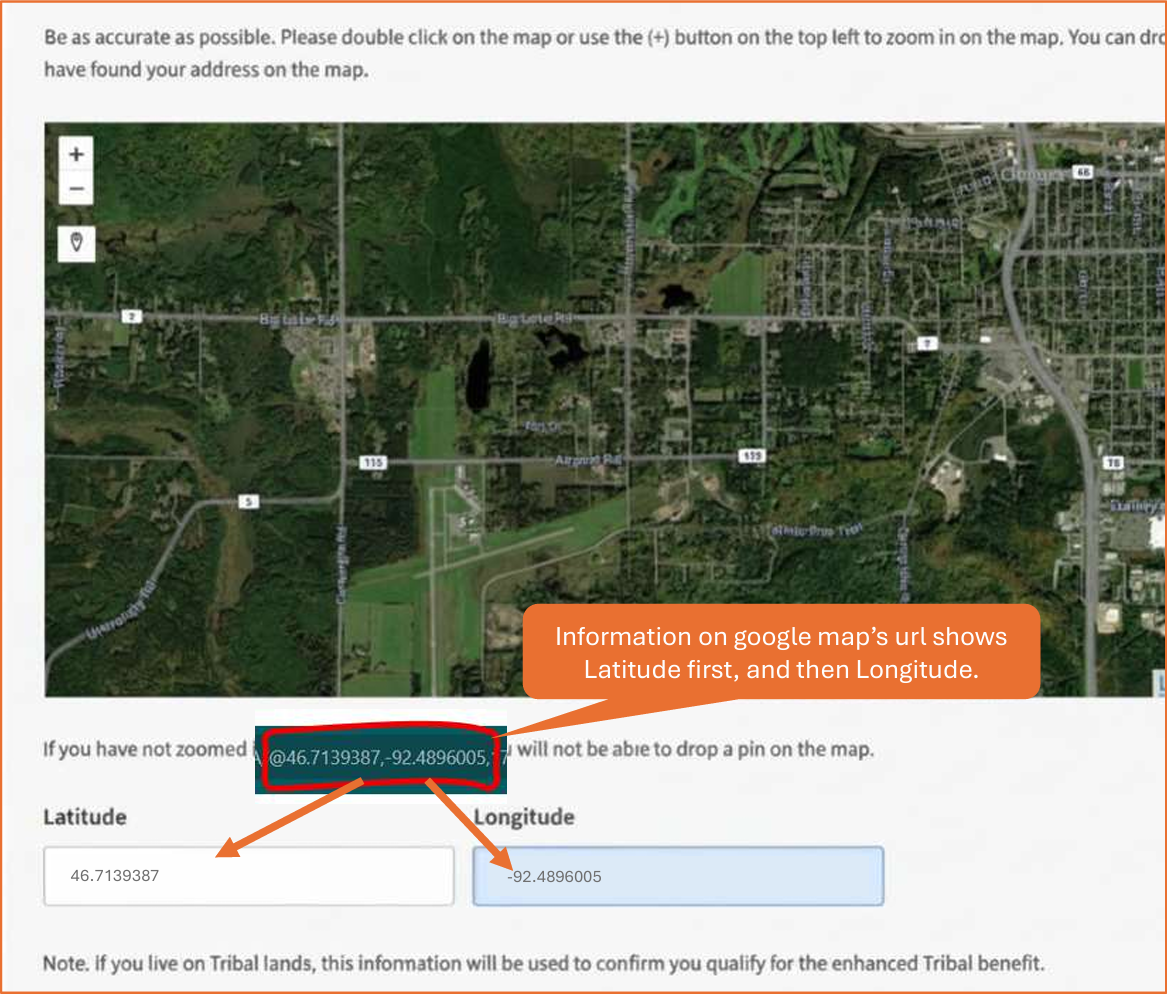
Manually dropping the pin “close enough” may result in inaccurate location data especially in rural or tribal areas.
For this reason, using Google Maps coordinates should be considered a best practice for all agents processing NatVer enrollments with the Forced Tribal validation flow.
California Medicaid Approval Process
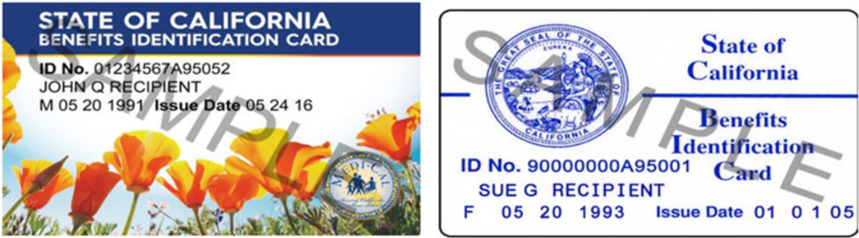
Agents must take into account that if the customer qualifies with Medi-Cal, the only acceptable documents are the following:
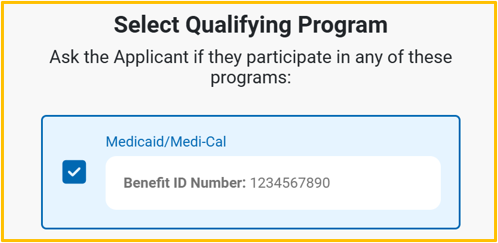
When the applicant selects Medi-Cal as their Qualifying program, a pop-up window will be displayed, and the agent have to CONFIRM that the benefit number is available, so that it can be introduced in the Quest app.
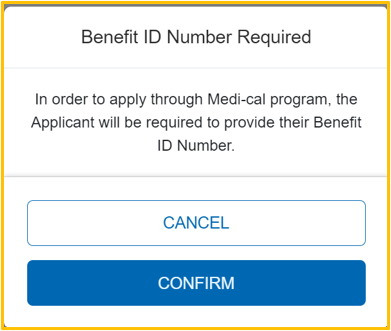
After clicking on confirm, ST agents will have to introduce the benefit number displayed in the Medi-Cal card.
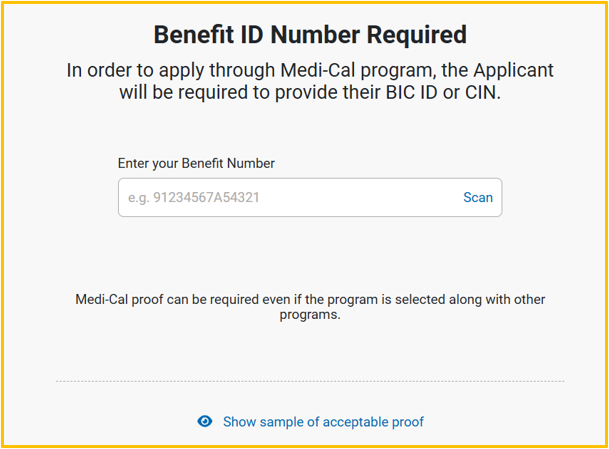
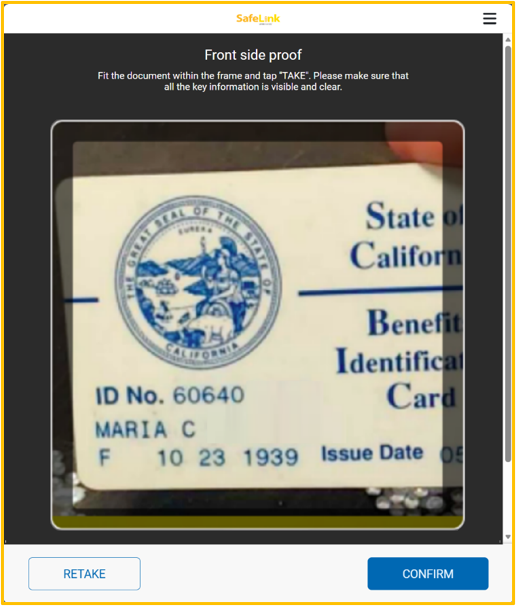
In the Benefit Number box, ST agents will also find the option to Scan the applicant’s card to prepopulate the card number.
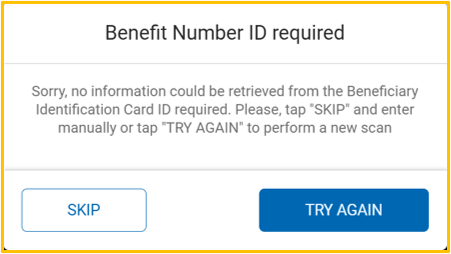
In case the Benefit Number ID can’t be obtained, the following message and options will be displayed:
If the Quest app accepts the ID number, it will be added below the qualifying program.