1) Log in & User Menu
The following document introduces the Vault tool, designed specifically for Team managers. Vault serves as a centralized database that provides access to a wide range of information, including details about sales agents, enrollments, verifications, and much more.
Throughout this guide, you’ll find an overview of all the available sections and categories within the platform. Each part is explained along with its key features, helping you navigate the system efficiently and make the most of everything Vault has to offer.
Among other things, the Vault tool enables Team managers to:
- Review teams and agents’ data whenever applicable.
- Check the agent and team’s performance.
- Create and download activity reports.
- Use the geolocation feature to track agent’s activity.
Log in
To access the Vault tool, team managers will have to use the credentials provided to them. If users do not remember their password, they can use the Reset password by email option that will be available below the SIGN IN button.
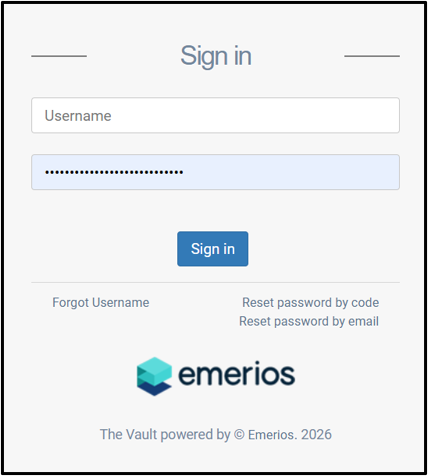
The password needs to have a combination of 10 characters, that includes lower case, uppers case, numbers, and special characters. There will also be another option, Forgot Username, which will allow team managers to provide their email address to retrieve their username.
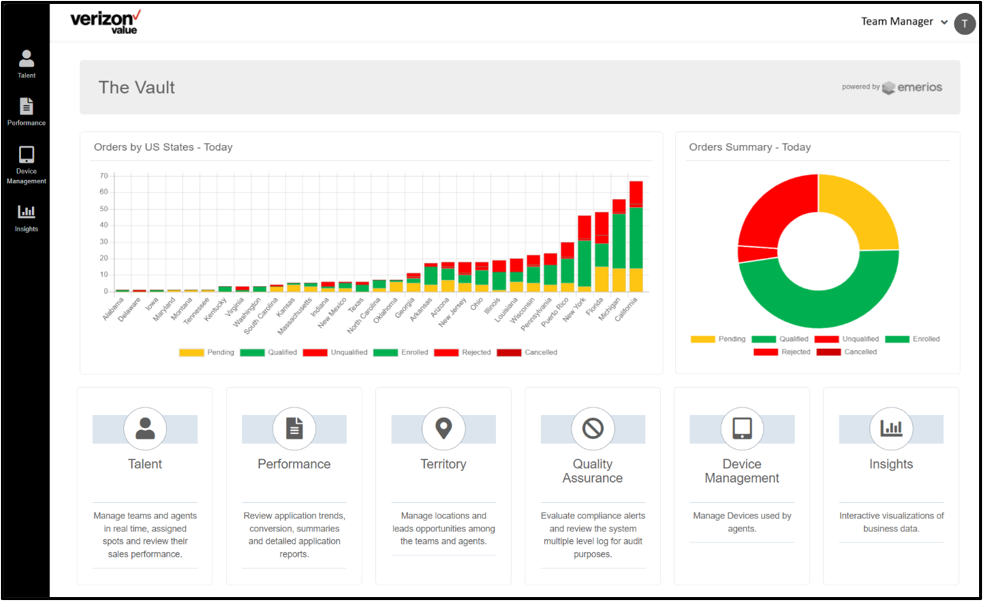
Once logged in, users will see the main dashboard that contains the daily summary of orders created with different status. But most importantly, we have the navigation menu located on the left side of the window.
User Menu
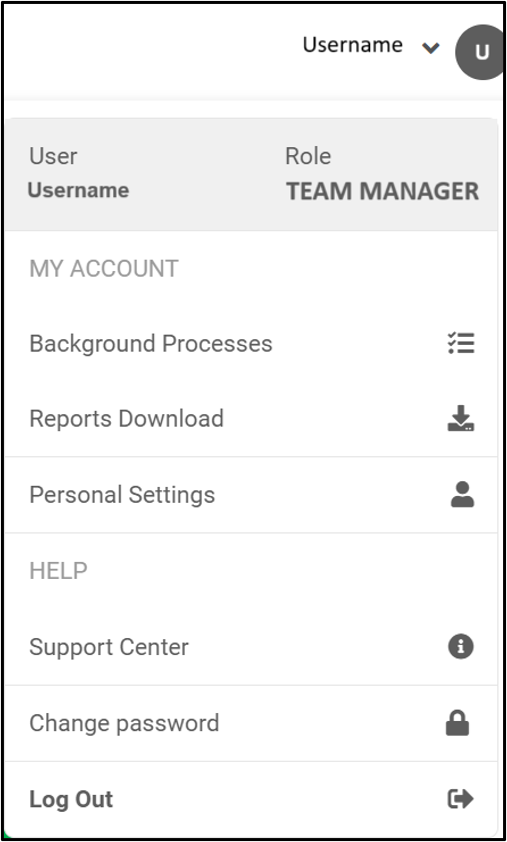
At the upper right corner, there will be a small menu which will display the name of the User, and its Role on the top. There will also be a subsection, MY ACCOUNT, where users will be able to check Background Processes, download data through the Reports Download option, and access to the Personal Settings.
At the bottom, there will be another section, HELP, which provides access to the Support Center (also known as IKB), where they will be able to search for and review articles related to different subjects (Vault usage, Quest app, Procedures, etc.) Users will also have the option Change password whenever necessary by selecting the corresponding option.
Finally, the last option will allow users to Log Out from Vault.