9) Device Option & Plan Selection
In this section, applicants will be presented with the device options available. Applicants will be able to select between the Free – Smartphone and Keep Your Own Device options.
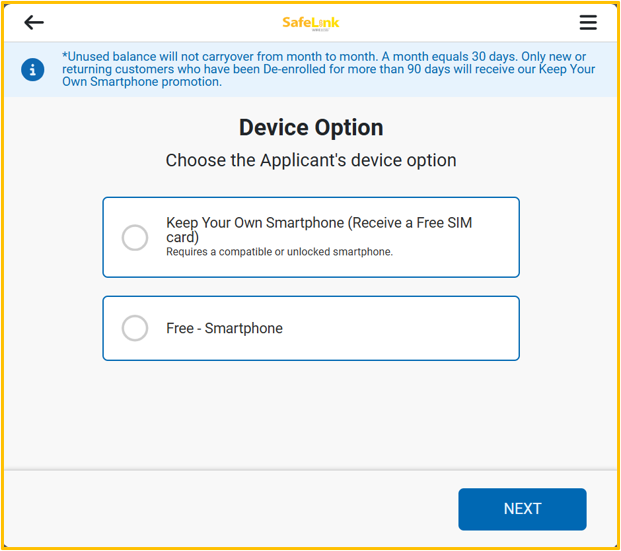
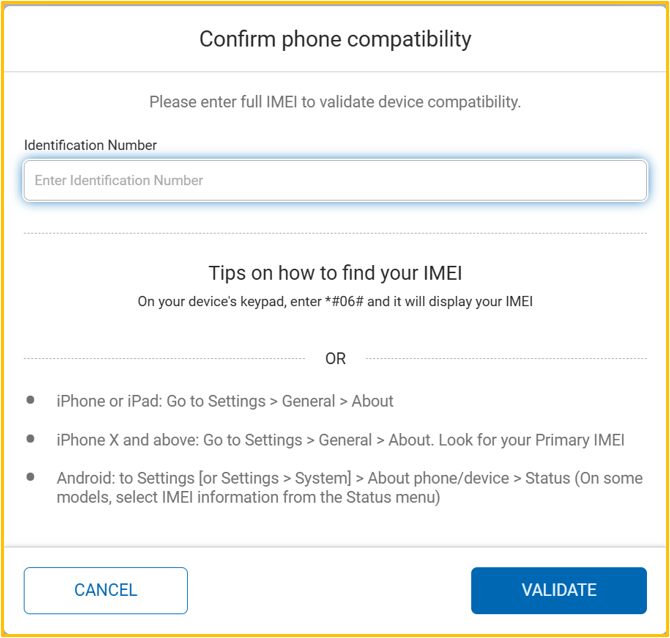
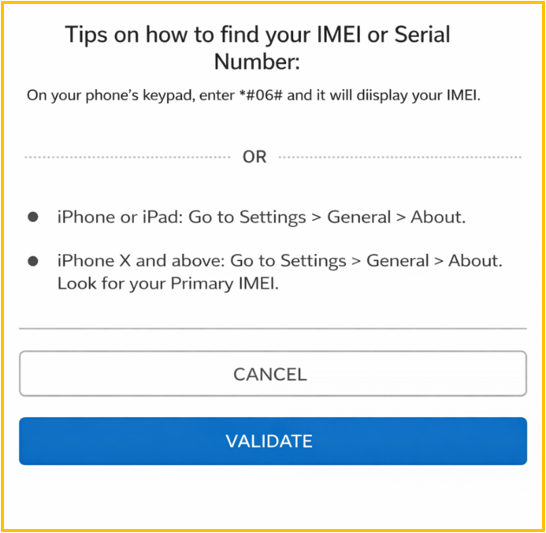
If the first option is selected, applicants will have to provide the Phone full IMEI number from their device. As shown below, applicants will find instructions on how to locate the number in case they don’t know how to do it.
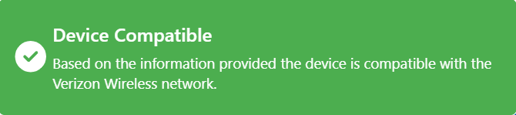
If the verification process is successful, the following message will be displayed.
On the other hand, if the device is not compatible, the following message will be shown.


In other cases, depending on the brand, the verification process will be different. Street Team Agents will be presented with the Device Identification pop-up. There, we will find the Device Type section (Android or iOS) and the Identification Type section, where Street Team Agents can select between Phone Numberand IMEI/IMED. If the first option is selected, the Phone number should be provided, and then the system will also request the last 4 digits of the IMEI. But if the IMEI option is selected from the beginning, applicants will have to provide the number, that normally has 15 to 18 digits.
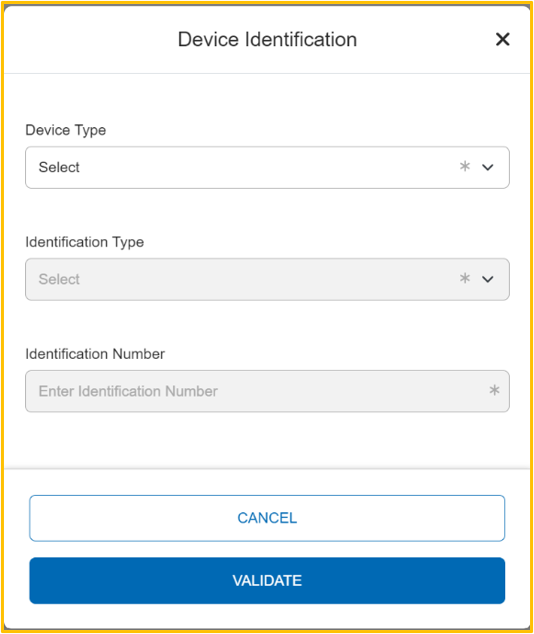
The Quest app will always provide instructions for applicants to know how to find the information requested.
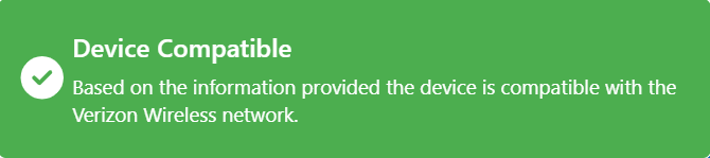
If the validation is successful, the Street Team Agent will be able to continue with the enrollment process. But if the device cannot be validated, the Quest app will inform you that the device is not compatible, and the enrollment process cannot be completed.
Plan Selection
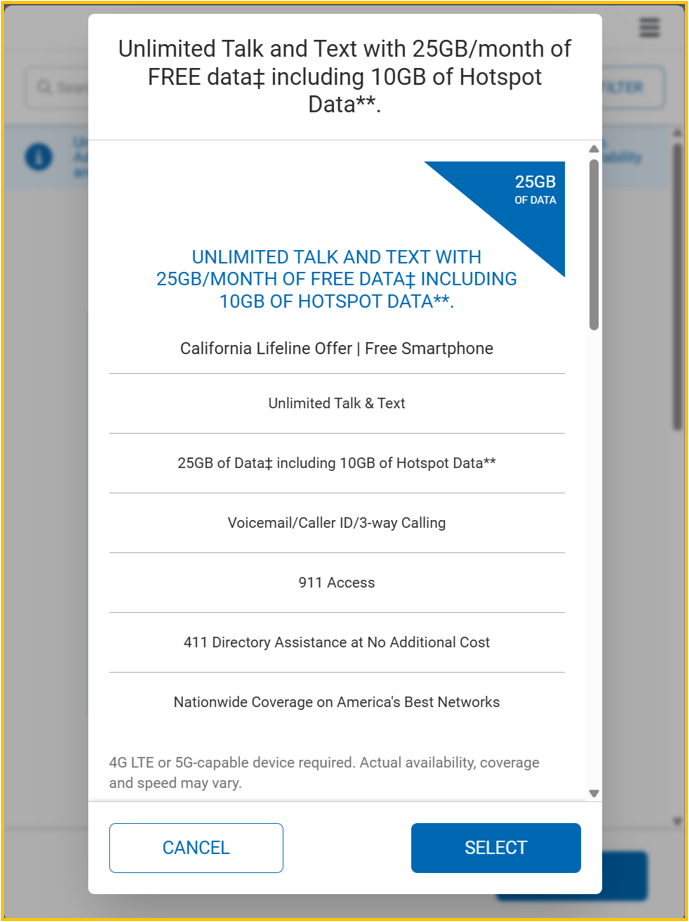
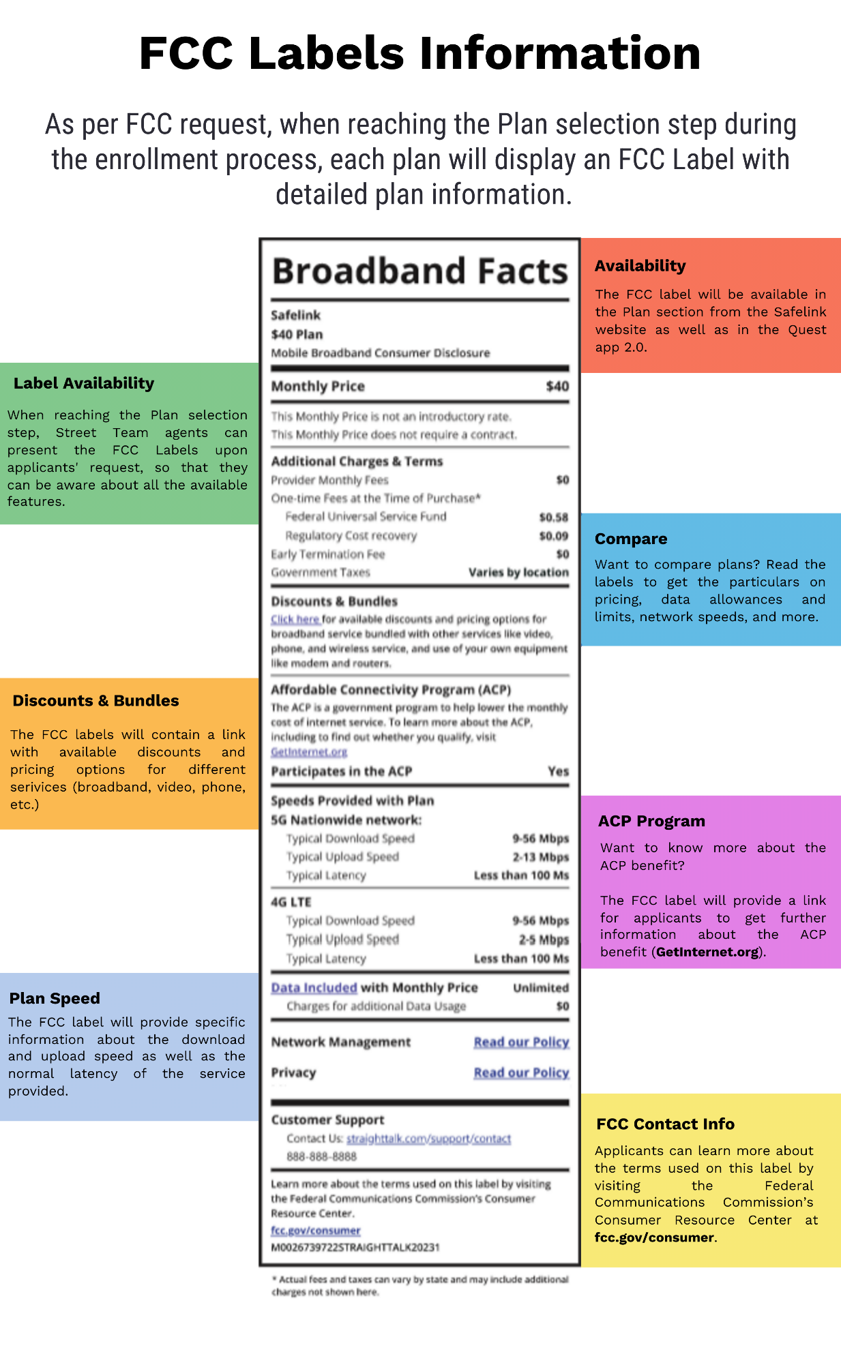
Once the eligibility method is selected, the following step is to present the different plans available to the applicant for them to select the most suitable for their needs.
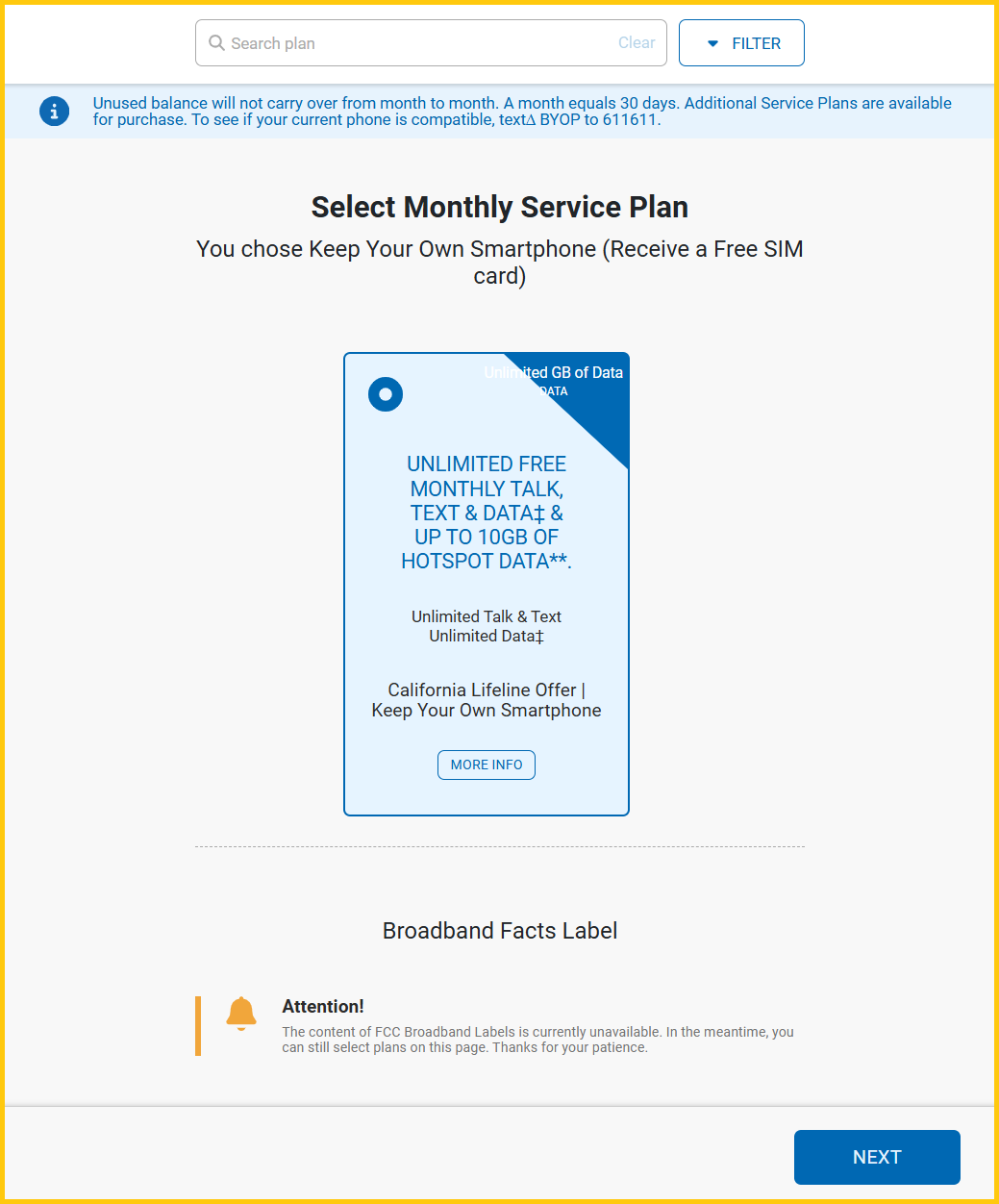
Note: The Quest app will only show the plans available according to the applicant’s location.
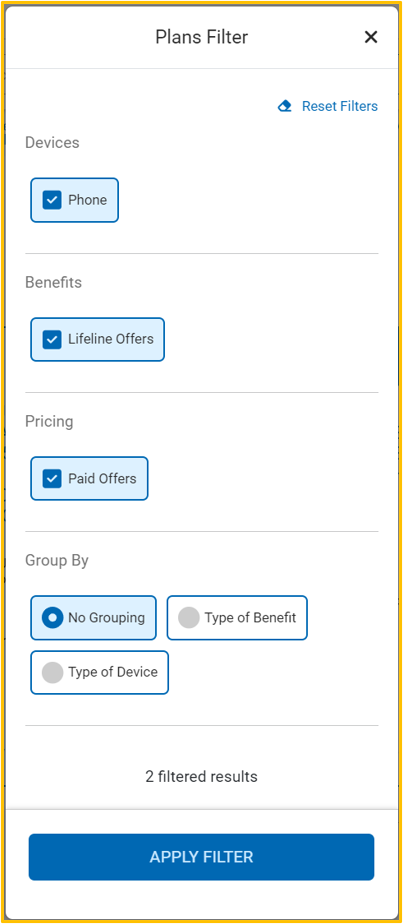
At the top right corner, the system will present a Plans Filter button. After pressing on it, Street Team Agents will be able to sort the information by Devices, Benefits, Pricing, and Group By options.
By clicking on the MORE INFO button located at the bottom of each plan, applicants will be able to see the complete offer.