
1) App Invitation
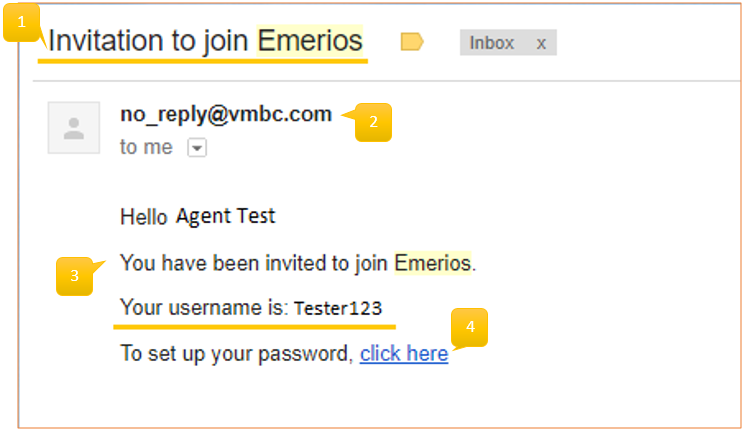
Street Team Agents will receive an email invitation to use the Quest App, plus additional information to complete the onboarding process, and contact information to contact the Support Team whenever needed.
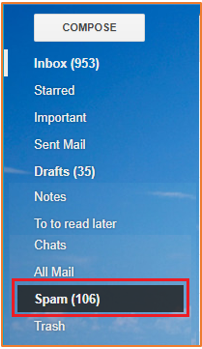
Note: If the email is not received, check the spam folder. To access the Quest App, Street Team Agents must complete the Onboarding process, have their user active and their RAD ID linked.
In order to use the App, agents must complete the onboarding process, approve the training provided and complete internal steps related to background check and the vetting process.
Email Invitation
The email will be sent with the following information:
Invitation not received
This can occur, because the invitation comes from a no_reply sender. Depending on the email provider (Yahoo, Gmail, Hotmail, etc.), filters, and rules from the agents’ inbox, sometimes the invitation email can go to the spam folder.
Depending the email provider and the organization of the inbox each person has, the email can go to different folders.
Gmail
In its default inbox version, besides the primary inbox, there are other tabs where the agent should look for the email.

On the left side of the inbox, the option to see the emails filtered as spam is usually under another option or folder called Labels or More Labels.
Hotmail/Outlook
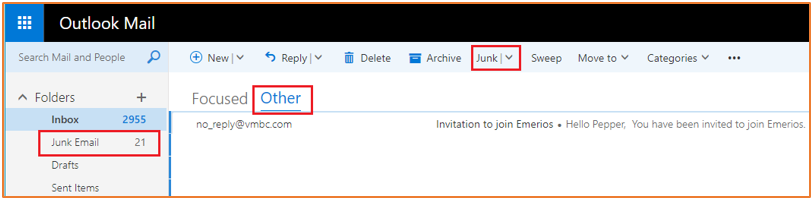
In its default inbox version, the inbox is divided in Focused and Other. On the left and top menu the Junk folder is the equivalent to Spam.
Yahoo
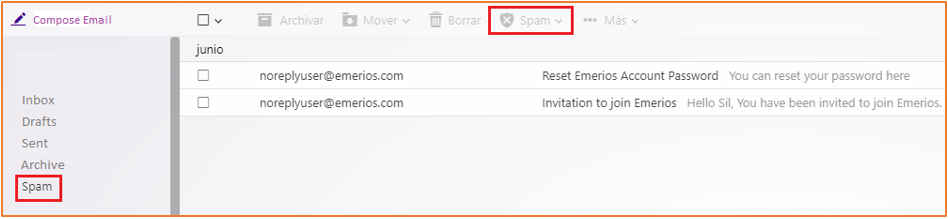
In its default inbox version, the inbox is divided in Focused and Other. On the left and top menu the Spam folder can be located to look for emails filtered there.
Password Creation
The password will be created by the agent to be in compliance regarding agent’s responsibilities towards customer’s information responsibility.
This also eliminates the need of depending on a third party team have to have passwords resets or troubleshooting.
Once the agent receives the invitation to start using the Quest app, the next step is to create a password.
In order to do so, the agent will tap on the link included in the email and follow the instructions to create a password.
A very simple screen will lead the agent to create the password, based on the following rules:
- The password must have at least 10 characters.
- It must have a combination of the following options:
- Lowercase letters
- Uppercase letters
- Numbers and Signs
- The password created (or to be reset) cannot be any of the last 6 passwords.
- The agent’s username cannot be used as part of the password
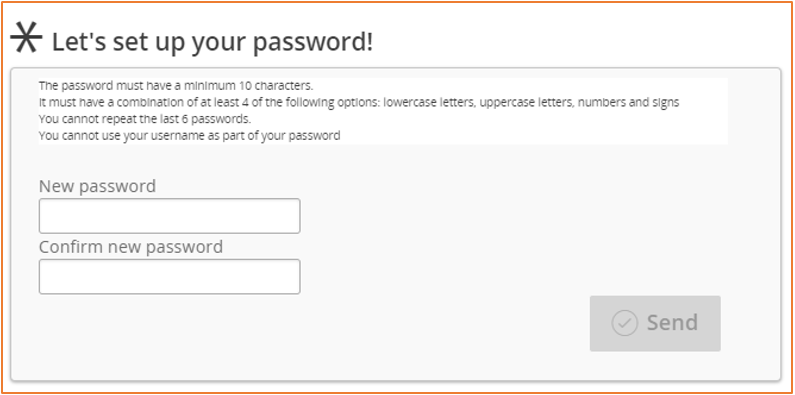
Once the Password has been set and confirmed, the Send button will become available.
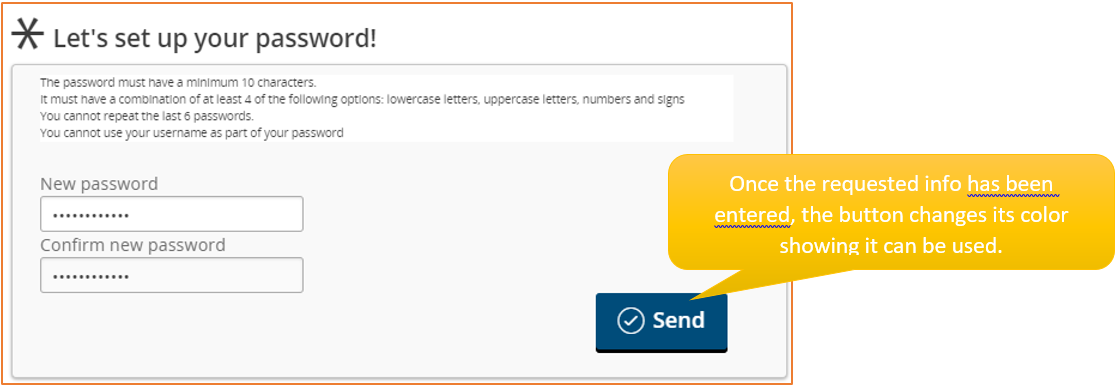
After this step has been completed, the agent can start using the Quest App, using the credentials created.